
DSP-APP offers the possibility for the user to search in 2 different ways: full-text search and advanced search. The search bar is always available in the header of each page, whether logged in or out.
Full-Text Search
DSP offers a full-text search that searches through all text values and labels of resources based on one or several terms (or phrase) entered in the search bar.
It returns data that matches the search conditions.
By default, the search is performed in all projects stored in DSP. However, it is possible to filter by project using the "Filter by project" menu on the left side of the search bar.
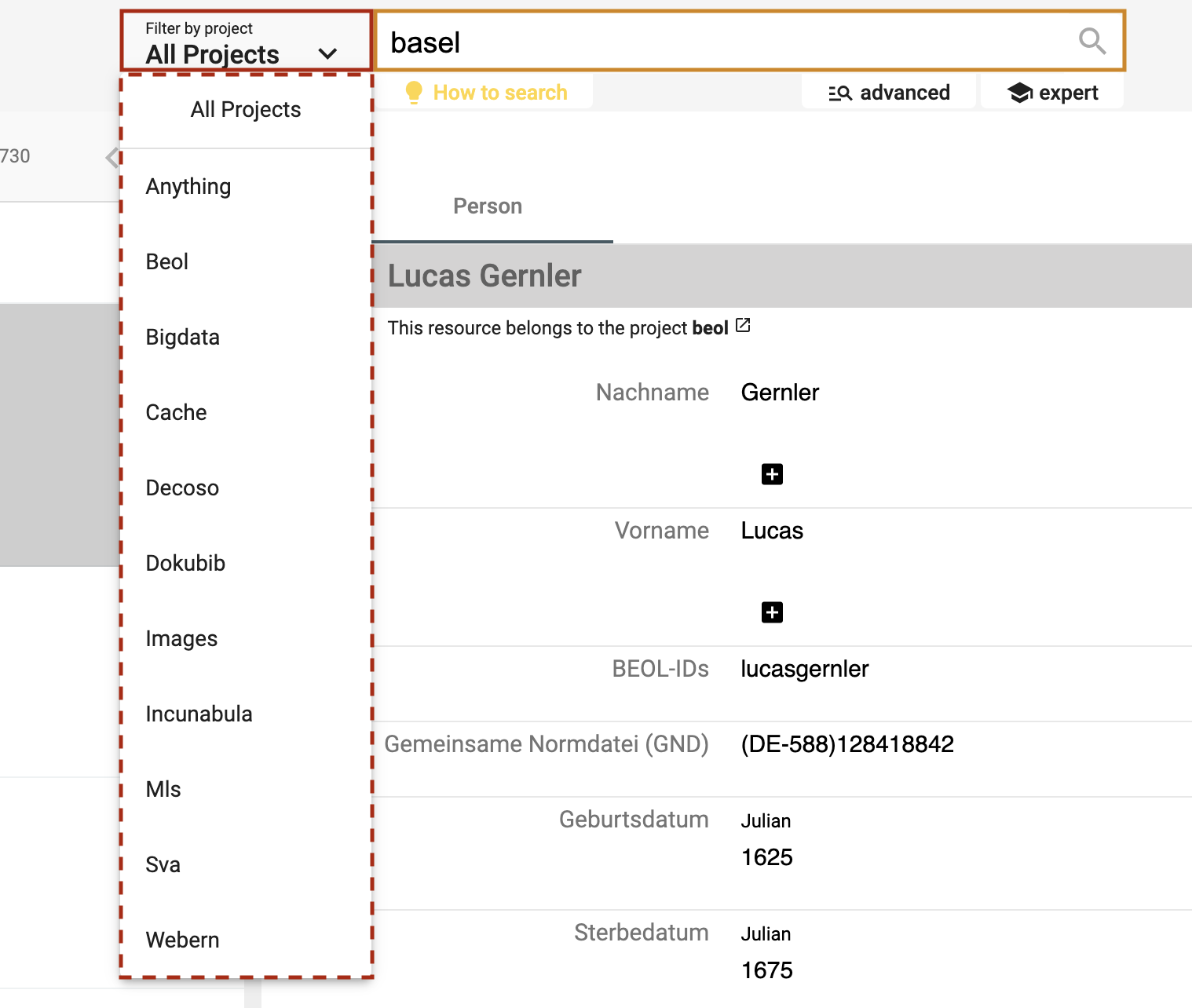
https://app.dasch.swiss - Search 1: Search in one specific project or all projects
When clicking on the search bar, the search history panel is displayed. The last 10 searches are registered. Click on one search item to perform the same full-text search again. It is also possible to clear the search history list (Clear list button at the bottom of the panel or the x at the end of each line).
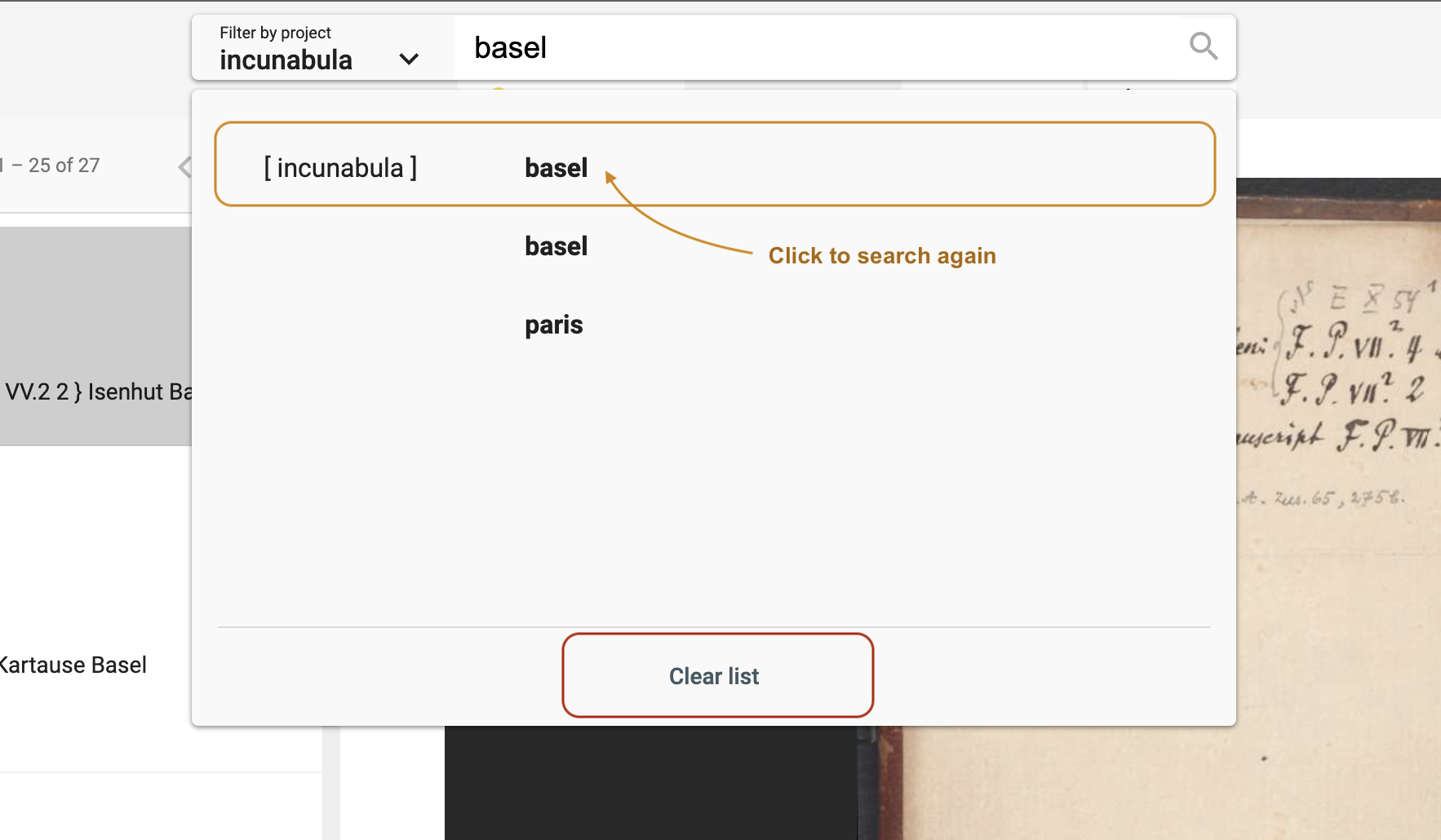
Search history list is accessible for the full-text search from any webpage.
Search Rules
- A search value must have a minimum length of 3 characters. If your search term has less than three characters (e.g.
is), please add two asterisks (*is*). - All terms are interpreted as lowercase characters. E.g. Down the Rabbit Hole is interpreted as down the rabbit hole.
- By default, the logical operator
ORis used when submitting several search terms. I.e. the nameAlice Liddellis searched asaliceORliddell. The database will return all results that include the termsAlice Liddell,alice, orliddell. To find the exact nameAlice Liddell, the term must be surrounded by quotes:"Alice Liddell". - Each term separated by a whitespace is considered a single term. E.g. the term
Cheshire Catwill be searched ascheshireORcat. To find the exact phraseCheshire Cat, the phrase must be surrounded by quotes:"Cheshire Cat".
Special Syntax
Special characters can be used in order to search for specific text patterns.
Here is the list of characters with special meaning: +, -, &&, ||, !, (, ), [, ], {, }, ^, ", ~, *, ?, :, \, /
For more information about them, please read the Lucene documentation.
If you want to search for these special characters explicitly, note that the punctuation marks
,and.are NOT eliminated and stay with the term where they occur. E.g.To be, or not to be, that is the question.-> when searching forbethe termbe,(comma included) won't be found (and thus also not the entire phrase). We recommend to use the special character*- thusbe*- to find all occurrences of a term.
Another example: If you search for the term(1995)that includes parenthesis in this case, you have to search for*1995*.
Focus on the most common used characters:
*: The asterisk can be used as a wildcard symbol for zero, one, or multiple characters. E.g.pari*will yield results such asParis,Parisian,parity,parish, etc.?: The question mark can be used as a wildcard symbol for a single character. E.g.Bern?will yield results such asBerne,Bernt, etc."": Quotation marks allow searches for the whole pattern. E.g."vittāni agne"yields a result for the exact termvittāni agne. If your search term consists of more than one word and you intend to do anANDsearch, please use quotation marks.
In order to make searching easier and independent of special characters, we recommand to use the advanced search. It will narrow down the search and accept special letters or characters. E.g. the exact writing rāmāyaṇī will be accepted and found.
Include Special Characters in the Search
If one of the above characters should be included in the search - without any special meaning - it needs to be escaped by the character \ .
E.g. If you want to search for Notre-Dame de Paris, you should type "Notre\-Dame de Paris".
Conversion
Alphabetic, numeric, symbolic, and diacritical Unicode characters which are not part of the first 127 ASCII characters (the "Basic Latin" Unicode block) are converted into their ASCII equivalents, if one exists. Thus, the full text search is set such that e.g. é, ä, š are converted into e, a, and s. This means that a search for šumma will yield results for šumma, summa, ṣumma, śumma, etc. If this is not what you need, please use the advanced search option instead.
For special characters that cannot be converted to ASCII equivalents, we suggest to replace the respective special character by an asterisk:
Such an example is r̥tasya, where the r̥ must be replaced either by rr or - simpler - by *: thus searches for rrtasya or *tasya will yield the intended search result, but not rtasya.
Advanced Search
The advanced search lets you build complex queries with a form. It is available from the Search tab of any project. Behind the scenes it builds a Gravsearch (SPARQL) query for DSP-API. The search runs as you build it — there is no separate search button — and the current query is kept in the page URL, so you can bookmark or share it.

The advanced search bar. Each condition you add becomes a chip.
The Search Bar
The advanced search is a horizontal bar made up of:
- Full-text search — a text box on the left for full-text matching (see below).
- Data model — choose which data model (ontology) to search. This appears only if your project has more than one data model.
- Resource Class — choose a resource class, or leave it on All resources.
- Filters — each condition you add becomes a chip in the bar.
- Add filter — add a new condition (see below).
- Sort by — choose how the results are ordered.
- Reset — clear the whole search. It appears once you have set something.
Full-Text Search Within the Advanced Search
The Full-text search box matches a resource by its label, its text values, value comments, and list entries. It uses the same syntax as the full-text search above — quotation marks for exact phrases, AND / OR / NOT, and the * wildcard. You can combine it with filters to narrow the results further.
This is different from the per-property matches operator described below.
Adding a Filter
Click Add filter to open the filter editor. Its three controls sit in a single row:
Property · Operator · Value
- Choose a Property.
- Choose an Operator (the operators available depend on the property's value type — see below).
- Enter or select a Value.
- Click Add (or press Enter) to confirm. The condition appears as a chip in the search bar and the results update.

Adding a filter: property, operator, and value in a single row. This example uses the matches operator, which adds a sub-criterion on the linked resource (see below).
To edit a filter, click its chip to reopen the editor. To remove a filter, click the ✕ on its chip.
Sub-criteria: when a filter uses a linking property with the matches operator and you choose a target resource class, you can add nested conditions on the linked resource with Add sub-criteria (and remove each with the ✕ on its row).
Sorting Results (Sort By)
Click Sort by and choose a property to order the results. One sort property is used at a time. Once selected, use the direction arrow to switch between ascending and descending order, or the ✕ to clear it. Properties that cannot be used for sorting — such as a URI property or a property that links to a resource — are disabled.
Comparison Operators
Depending on the value type of the chosen property, one or more of the following operators are available:
equals: value equality — same number, exact same string, an overlap of date periods, same target resource.does not equal: value inequality — not the same number, not the exact same string, no overlap of date periods, not the same target resource.greater than: number is greater than the search value, or a date period begins after it.greater than or equal to: number is equal to or greater than the search value, or a date period overlaps or begins after it.less than: number is less than the search value, or a date period ends before it.less than or equal to: number is equal to or less than the search value, or a date period overlaps or ends before it.exists: a value for the given property exists.does not exist: no value for the given property exists.is like: the search value is contained in a text, using the SPARQL REGEX function (supports regular expressions).matches:- text property: the search value matches the text (Lucene Query Parser Syntax).
- linking property: matches the specified linked resource.
Search Examples
is like (Regular Expressions)
The is like operator lets you search for text that is like the search value, using regular expressions.
For example, an is like search on a book's title can find every book whose title contains "Wonderland" followed by a space and other characters — such as "Wonderland (1865)" or "Wonderland (annotated)".
For information about regular expressions in SPARQL, see:
- XSD Regular Expressions Guide — comprehensive reference
- W3C XQuery/XPath Functions — formal specification
Important: SPARQL uses XSD regex syntax, which differs from the PCRE regex used in most programming languages.
matches (Lucene Parser Syntax)
Used with a text property, the matches operator lets you search for text that matches the search value,
supporting Lucene Query Parser Syntax.
For example, a matches search for Ch?shire on a character's name (where ? stands for a single character) finds "Cheshire" and similar variations.
Note the difference between regular expressions and Lucene parser syntax!
matches (Specifying a Linked Resource)
Used with a linking property, the matches operator lets you search for a linked resource that matches the specified properties. Select the target resource class, then use Add sub-criteria to add conditions on the linked resource.
In the example below, the query looks for all Publications whose Author(s) matches an Author whose Resource Label is like "Rita" — a sub-criterion on the linked resource. The committed filter appears as a chip.
This is different from the equals operator, which lets you pick one specific linked resource from a list.
